Researcher

  • Participate
  • Researcher Login (opens in new tab)
National Ophthalmic Disease Genotyping and Phenotyping Network
eyeGENE

Main navigation

    • About eyeGENE®
    • Working Group
    • Expert Panel
    • Apply For Access
    • Get An Account
    • Researcher Auth Service (RAS)
    • User Guides (opens in new tab)
  • Participate
    • Summary Data
    • Data Exploration
    • Data Dictionary
    • Approved Research Studies
    • NIH CDE Forms Repository (opens in new tab)
    • Publications
  • Contact Us

Get An Account

Breadcrumb

  • Home
  • Get An Account

The infographic below will walk you through the process of getting an account and provide information on the modules associated with each account type.

Getting started with eyeGENE®

In order for you to contribute or access data in eyeGENE®, you will first need an account. Before you can create an account, you need to understand what permissions you will need and how eyeGENE® works.

Let’s get started!

overview: How to start Using eyeGENE®

1

Set up your researcher auth Service account

eyeGENE® requires multi-factor authentication through the Researcher Auth Service (RAS). Please sign in using RAS on the eyeGENE® Log In page with a Smart Card or Login.gov account.

2

Create your New eyeGENE® Account

Once you have signed into RAS, you can create a new eyeGENE® account.

3

Determine Your Permissions

Review a list of permissions, and determine which are relevant to your eyeGENE® usage.

4

Download, fill out, and Submit your forms

Different account types have different forms. Once you’ve determined your account type, fill out and submit the correct forms.

5

Determine your account type

The permissions you need determine the type of account that you will need to request: Data Submission, Data Access, or both.

6

Get Account Approval

After approval from the Data Access and Quality Committee, you will receive an email from the system letting you know your account has been approved. You and your research team may now begin submitting or accessing data.

1

Set up your researcher auth Service account
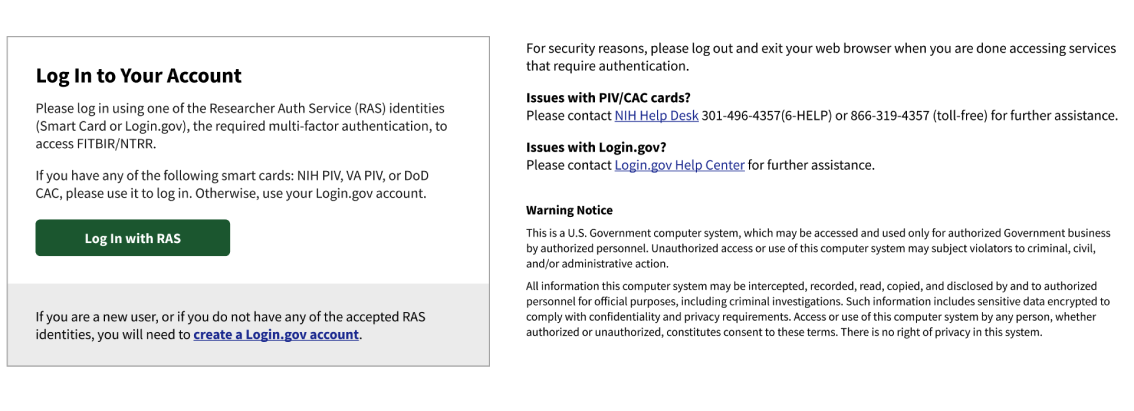
Screenshot of logging in with RAS
Smart Card:

If you have a Smart Card (NIH PIV, VA PIV, or DoD CAC), you can use this to login to eyeGENE® through the Researcher Auth Service (RAS).

After clicking ‘Log In,’ select PIV/Smart Card as your identification method. Select the appropriate certificate and enter your pin to complete your authentication.
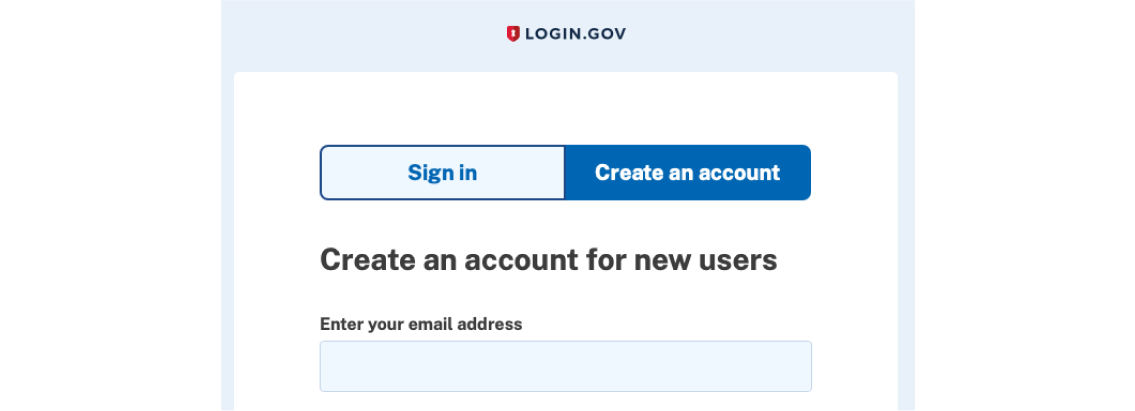
Screenshot of logging in with Login.gov account
Login.gov:

If you do not have a Smart Card (NIH PIV, VA PIV, or DoD CAC), you must create a Login.gov account via the link on the eyeGENE® Log In page.

Create your Login.gov account with your desired email and verify the email address to finish creating the account. Once your Login.gov account has been created, navigate back to the eyeGENE® Log In page and click ‘Log In with RAS.’ Select ‘Login.gov’ as your identification method, and enter your Login.gov credentials to sign in. You will need to grant permission for eyeGENE® to access your basic profile information to proceed.

2

Create your New eyeGENE® Account

Once you have logged in with RAS, you can create a new NTRR account by clicking ‘Create Account’ on the Login In Successful page.

login successful

3

Download, fill out, and Submit your forms

Before you can request your permissions and determine your account type, you must complete required documentation. Let’s take a look at how to download and submit your forms, and what to expect after doing so.

Download Forms Icon

Download Forms

Download a Data Access form, a Data Submission form, or both.

Upload Forms Icon

fill out and upload forms

After you have filled out your forms, they must be uploaded to eyeGENE® in order to request an account. Edit your profile and select the Add Files step to upload these forms to your account.

4

Determine Your Permissions

Your role requires you to have access to certain permissions. Determining what those permissions are will help you to determine which you need, and what account type to apply for.

Data Dictionary Icon
Data Dictionary

The Data Dictionary is used for defining and validating Data. A user can search, create, and manage data elements and form structures. Research data is validated against the defined validation rules.

Subject Management Icon
Subject Management

Subject Management uses the Global Unique Identifier System (GUID) allows researchers to share data specific to study participants. Participants can be correlated across studies without exposing personally identifiable information (PII).
Data Repository Icon
Data Repository

The Data Repository is used for study management and data submission. Users can contribute, upload, and store research data here. This is where study information and access are defined and managed.

ProFoRMS Icon
ProFoRMS

ProFoRMS is used for Clinical Trials/Research to define electronic case report forms, schedule and collect clinical data, and export, analyze, and report on collected data. 

Query Tool Icon
Query Tool

The Query Tool is used for querying, reporting, and exporting data. It includes locally collected research data.

Datastore Icon
Datastore

The Datastore module is a flexible data store allowing for management and storage of primary and secondary data from research studies. Each Datastore is assigned a unique persistent identifier (a digital object identifier (DOI)) to support data discovery and provides controlled access (permission based) to datasets and metadata which coexist within the module.

5

Determine your account type

Data Submission Icon

data submitter

The Data Submitter Account is for investigators submitting studies with common data elements that will be aggregatable across studies within the eyeGENE® repository. If you request a Data Submitter Account, you will be provided with the privileges listed below, which work together to enable you to submit data to the system. Download the required Data Submission form here.

Accounts Icon
Accounts
  • A data submission request form is required for access to eyeGENE®.
  • A data submission request form should be filled out and reviewed by the Data Access and Quality Committee.
  • Once approved a user can access modules they have been granted permission to use.
Data Dictionary Icon
Data Dictionary
  • Cross map your CRFs to UDEs and CDEs within the data dictionary.
  • Build form structures to submit data to the study you are working with.
Data Repository Icon
Data Repository
  • Creating a study in the data repository is the first step in the process to submit data.
  • The approved Data Submission Request form must be attached to the study.
Forum Icon
Forum
  • Access the eyeGENE® Forum, a discussion board for account users.
  • View and post content and comments on various eyeGENE® topics.
ProFoRMS Icon
ProFoRMS
  • If you plan on using ProFoRMs as your live data capture system, please contact NTRR Ops for guidance on how to use this module to proactively define and capture data elements and form structures before you begin collecting data. 
  • The use of ProFoRMs is not required; you may use your own data capture system.
  • If you'd like to use ProFoRMs, select 'Data Submitter with ProFoRMs' as your account type.
Subject Management Icon
Subject Management
  • Subject Management uses GUIDs on all form structures for reporting subject level data.
Tools Icon
Tools
  • Data Validation tool is used to ensure data quality.
  • Data submission writes data to your study in the repository.
  • Download tool is used to download data from the Data Repository.
Data Storage Icon

data storage (coming spring 2025)

The Data Storage Account is for investigators submitting data to the meta repository only. Studies in the meta repository are available for download, but data elements are not searchable or interoperable. Until this account type is instituted later in 2025, those submitting to the meta repository only may choose the "Other" account to gain access. The privileges associated with the Data Storage Account are listed below. Let's see how these permissions work together to store data in the system.

Accounts Icon
Accounts
  • All eyeGENE® users must have an account.
  • Manage individual user accounts, profiles, and privileges.
  • Upload data submission and/or data access documents.
Data Dictionary Icon
  • Define and validate data.
  • Search, create, and manage data elements and form structures.
Forum Icon
Forum
  • Access the eyeGENE® Forum, a discussion board for account users.
  • View and post content and comments on various eyeGENE® topics.
Datastore Icon
Datastore
  • Flexible data store allowing for management and storage of primary and secondary data from research studies. 
  • Each Datastore is assigned a unique persistent identifier (a digital object identifier (DOI)) to support data discovery and provides controlled access (permission based) to datasets and metadata which coexist within the module. 
Tools Icon
Tools
  • Download Tool is used to download data from the Data Repository or Meta Study.
Data Access Icon

data accessor

If you request a Data Accessor Account, you will be provided with the privileges below. Let's see how these permissions work together to access data in the system. Download the required Data Access form here.

Accounts Icon
Accounts
  • All data accessors must have an account to log in to eyeGENE®.
  • A data access request form should be filled out and reviewed by the Data Access and Quality Committee.
  • Once approved a user can access modules they have been granted permission to use.
Forum Icon
Forum
  • Access the eyeGENE® Forum, a discussion board for account users.
  • View and post content and comments on various eyeGENE® topics
Data Dictionary Icon
Data Dictionary
  • Cross map your CRFs to UDEs and CDEs within the data dictionary.
  • Build form structures to submit data to the study you are working with.
Data Repository Icon
Data Repository
  • The data repository houses the data in eyeGENE® by study. You can view details of each study that has submitted or will submit to eyeGENE®.
  • If the data is shared or if you have access to the data, you can download the data from each study exactly as it was uploaded.
Datastore Icon
Datastore
  • The Datastore module is a flexible data store allowing for management and storage of primary and secondary data from research studies. 
  • Each Datastore is assigned a unique persistent identifier (a digital object identifier (DOI)) to support data discovery and provides controlled access (permission based) to datasets and metadata which coexist within the module. 
Query Tool Icon
Query Tool
  • The Query Tool pulls the data from the repository and allows you to manipulate and filter the data based on your research question of interest. 
  • You can then download the data you have filtered in eyeGENE®.
Tools Icon
Tools
  • Data Validation tool is used to ensure data quality.
  • Data Submission writes data to your study in the repository.
  • Download tool is used to download data from the Data Repository.
Forum Icon

forum

If you request a Forum Account, you will be provided with the privileges listed below. Let's see how these permissions work together to access data in the system.

Accounts Icon
Accounts
  • All eyeGENE® users must have an account.
  • Manage individual user accounts, profiles, and privileges.
  • Upload data submission and/or data access documents.
Forum Icon
Forum
  • Access the eyeGENE® Forum, a discussion board for account users.
  • View and post content and comments on various eyeGENE® topics.
Other Icon

other

If you request an Other Account, you may be provided with any of the privileges listed below.

Accounts Icon
Accounts
  • All eyeGENE® users must have an account.
  • Manage individual user accounts, profiles, and privileges.
  • Upload data submission and/or data access documents.
Forum Icon
Forum
  • Access the eyeGENE® Forum, a discussion board for account users.
  • View and post content and comments on various eyeGENE® topics.
Data Dictionary Icon
Data Dictionary
  • Cross map your CRFs to UDEs and CDEs within the data dictionary.
  • Build form structures to submit data to the study you are working with.
Data Repository Icon
Data Repository
  • The data repository houses the data in eyeGENE® by study. You can view details of each study that has submitted or will submit to NTRR. 
  • If the data is shared or if you have access to the data, you can download the data from each study exactly as it was uploaded.  
Datastore Icon
Datastore
  • The Datastore module is a flexible data store allowing for management and storage of primary and secondary data from research studies. 
  • Each Datastore is assigned a unique persistent identifier (a digital object identifier (DOI)) to support data discovery and provides controlled access (permission based) to datasets and metadata which coexist within the module. 
ProFoRMs Icon
ProFoRMs
  • If you plan on using ProFoRMS as your live capture system, please contact eyeGENE® Ops for guidance on how to use this module to proactively define and capture data elements and form structures before you begin collecting data.
  • The use of ProFoRMs is not required; you may use your own data capture system.
Query Tool Icon
Query Tool
  • The Query Tool pulls the data from the repository and allows you to manipulate and filter the data based on your research question of interest. 
  • You can then download the data you have filtered in eyeGENE®.
Subject Management Icon
Subject Management
  • Subject Management uses GUIDs on all form structures for reporting subject level data.
Tools Icon
Tools
  • Data Validation tool is used to ensure data quality.
  • Data Submission writes data to your study in the repository.
  • Download tool is used to download data from the Data Repository.

6

Get account approval

Your account will be reviewed by the Data Access and Quality Committee. If your account is approved, you will receive an email 10-15 days after submitting your application with next steps. Once you log in, you can begin accessing and submitting data to eyeGENE®.

eyeGENE®

Important Links

  • Accessibility
  • Copyright Policy
  • Disclaimers
  • FOIA
  • Privacy Policy
  • Social Media Commenting Policies
  • Third-Party Websites and Applications (TPWA)
  • Vulnerability Disclosure (opens in new tab)

Related

  • NEI Office of Data Science and Health Informatics (opens in new tab)
  • National Eye Institute (opens in new tab)

Partners


National Eye Institute 

Health & Human Services